How to Book Using the Catalogue
If you are not entirely sure of the title you need to book, or if you need a bit of help figuring out what training or certification would be the best next step, then Learn’s Browse Catalogue feature is perfect for you.
Now, you can explore a world of courses and certifications designed to boost your skills and career 🚀. Whether you're looking to master a new area or enhance your expertise, our catalogue has something for everyone! 📚✨
To get started, click on Browse Catalogue in the menu on the left of your screen:

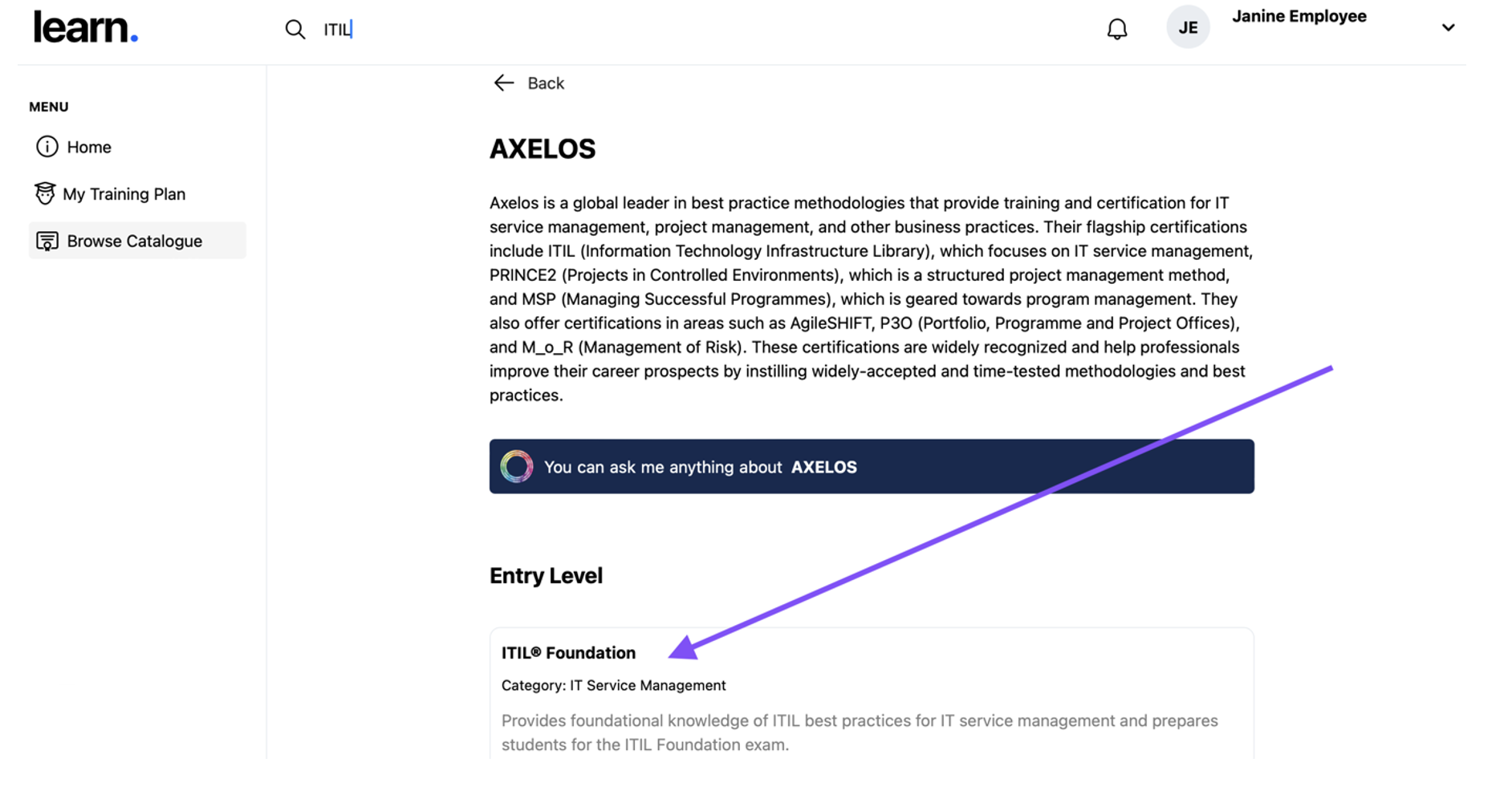
This will direct you to a list of all the providers currently offered by our vendors. You can scroll through this page to find a provider that interests you, or, if you already know the provider then type it into the search bar at the top of your screen:

Click on the providers block to open an overview of the provider and a list of their top titles categorised by difficulty. Find the course or exam you want to book and then click on it:
You will see a full overview, including the benefits, prerequisites and also some of the vendors who offer this.
Once you have decided if this is the right option for you, click the Book button in the top right of the screen:

The booking request form will open for you to complete. Enter the required information and then click the Submit Request button:

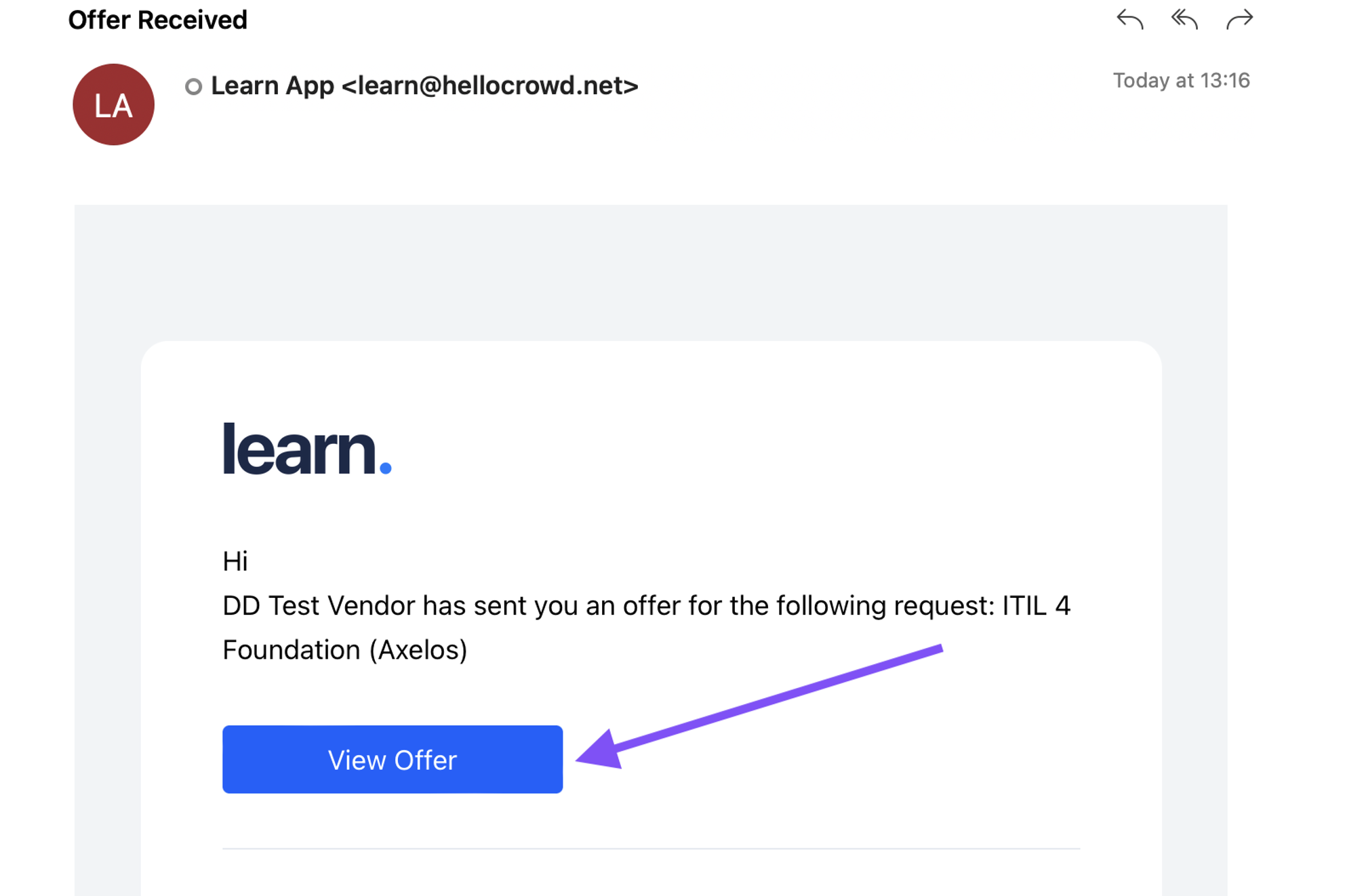
Your request has now been submitted to all the Learn Vendors who offer the provider and delivery method you requested. You will receive an email as soon as a vendor responds with an offer. Click the View Offer button in the email to be directed to your Bookings page where you can see the details:
You can also check for updates to your booking directly on your dashboard. The 2 Actions menus at the top of your dashboard alert you as soon as there is something for you to do, just click on them to see exactly what action is required:

Once you have clicked the “View Offer” button in the email or clicked on the booking on your dashboard you will see which vendors have sent you an offer and which vendors still need to respond. Click on the View Offer button to see the details of the offer:

If there is more than 1 vendor that matched your request there will be a mandatory waiting period of 8 hours before you can accept an offer. This is to ensure you compare the offers and accept the best option.
Once you have decided which offer is best for you, select it, then check the acknowledgement checkbox and, lastly, click the Accept Offer button:

You will be directed to the Acknowledgement of Debt for your booking. Complete the digital signing of the AOD so that your booking can be submitted for approval. As soon as you have signed your AOD you have successfully submitted your booking with a Learn Vendor. 😊
It will be sent first to your Manager for approval, then to the L&D team for approval and finally will be accepted by the vendor. You can monitor the progress of the approvals by opening the booking window from your dashboard at any time:

You will be notified by email as soon as your booking is approved!
* Once you have completed the training or certification remember to upload your completion certificate so that your booking is complete and your AOD can start to deplete!